Friday, 1 August 2014

Top 10 Indestructible Products You Can Use Today

10. The Embassy Tactical Pen                                                         

indestructible1
Everyone hates rummaging for a pen only to find that it’s out of ink. Even worse are ink explosions that always ruin your favorite bag or pair of pants. It’s time we took a stand against faulty pen manufacturing, and the Embassy Tactical Pen does just that. It’s made from top-notch, aircraft quality aluminum and stainless steel, and the top is designed to fit on securely so you no longer have to worry about pen marks messing up your nice clothes.
The Tactical Pen was designed for military personnel, but who says we don’t need this type of technology in the corporate world? No one likes to watch their pen roll off their desk every time the building’s A/C turns on. Or even worse, that awkward twist of your fingers that launches your pen across the room. Yeah, that’s really smooth. You won’t have that problem with this indestructible piece of inked up machinery considering it weighs as much as a roll of nickels.

9. The Kaventsmann Triggerfish Bronze A2 Watch                   

indestructible2

Wednesday, 25 June 2014

The Best Places to Find Free, High-Res Images for your Website

Good, high-quality images add visual interest to your website. Another reason why photos have become so important is because web pages that include good photos get better engagement when shared on social sites like Twitter and Facebook.


Download High Quality Images for Free

The web offers billions of photos that are just a Google search away. The images that are in public domain, or licensed under the Creative Commons license, can be used without any copyright issues.
The only problem is that Google may not always surface the best content that is free. Their algorithms, at least for image search, prefer pages from premium stock photography websites and the free listings thus lose out. If Google isn’t helping in your quest for images, here are some of the best websites where you may find high-quality photos for free.
1. unsplash.com (Unsplash) – This is my favorite website for downloading high-resolution photographs. Subscribe to the email newsletter and you’ll get 10 photos in your inbox every 10 days. All images are under the CC0 license meaning they are in public domain and you are free to use them in any way you like.
2. google.com (LIFE) – The Google images website hosts millions of historical photographs from the LIFE library. You can add source:life to any query in Google image search to find these images and they are free for personal, non-commercial use.
3. flickr.com (The British Library) – The national library of the UK has uploaded over a million vintage photographs and scanned images to Flickr that are now in pubic domain and they encourage re-use.
4. picjubmo.com (Picjumbo) – Here you’ll find exceptionally high-quality photos for your personal and commercial use. The pictures have been shot by the site owner himself and all he requests for in return is proper attribution.
5. pixabay.com (Pixabay) – All the images on Pixabay are available under the CC0 license and thus can be used anywhere. Like Flickr, there’s an option to browse photographs by camera model as well.
6. publicdomainarchive.com (Public Domain Archive) – This is an impressive online repository of public domain images that are neatly organized in categories. It contains only high quality photos though the collection is limited at this time.
7. commons.wikimedia.org (Wikimedia Commons) – The site hosts 21+ million images under some kind of free license or in the public domain. The images are arranged in categories or you can find images through search keywords.
8. superfamous.com (Super Famous) – Another great resource for finding high-res images for your websites and other design projects. The images are licensed under Creative Commons and require attribution.

9. nos.twnsnd.co (New Old Stock) – Here you will find a curated collection of vintage photographs from public archives that are free of any copyright restrictions. If you are trying to create a twitter feed like @HistoricalPics, this might be a good source for images.
10. freeimages.com (Stock Exchange) – This is one of the biggest repositories of free images and graphics that you can use for almost any purpose. You do however need to sign-in to download the images. The site, previously hosted on the schx.hu domain, is now part of Getty Images.
11. morguefile.com (Morgue File) – The site hosts 300,000+ free images and you are free to use them in both personal and commercial projects even without attribution. The image gallery has a built-in cropping tool and you can even hotlink the images from your website.
http://wallpaperswa.com/thumbnails/detail/20130111/black%20and%20white%20old%20usa%20past%20amin%20peyrovi%20children%201200x847%20wallpaper_wallpaperswa.com_1.jpg
12. gettyimages.com (Getty Images) – If you are looking for professional images for your website but without the expensive license fee, Getty has something in store for you. You can embed pictures from Getty Images for free on your website though in future, the embeds may carry ads.
13. pdpics.com (Public Domain Photos) – The website contains thousands of royalty free images that can be used in both personal and commercial projects but with attribution. Unlike other sites that merely curate content, the images found here have been clicked by their in-house photographers.
14. imcreator.com (IM Free) – A curated collection of outstanding high-quality photos on all subjects that are also free for commercial use. The images have mostly been sourced from Flickr and require attribution.
15. photopin.com (Photo Pin) – Flickr is among the biggest repository of photographs on the web and Photo Pin helps you easily find photos on Flickr that are available under the Creative Commons license. You get the embed code as well so you don’t have to host the images on your own server.

What You Can Do with Facebook Graph Search

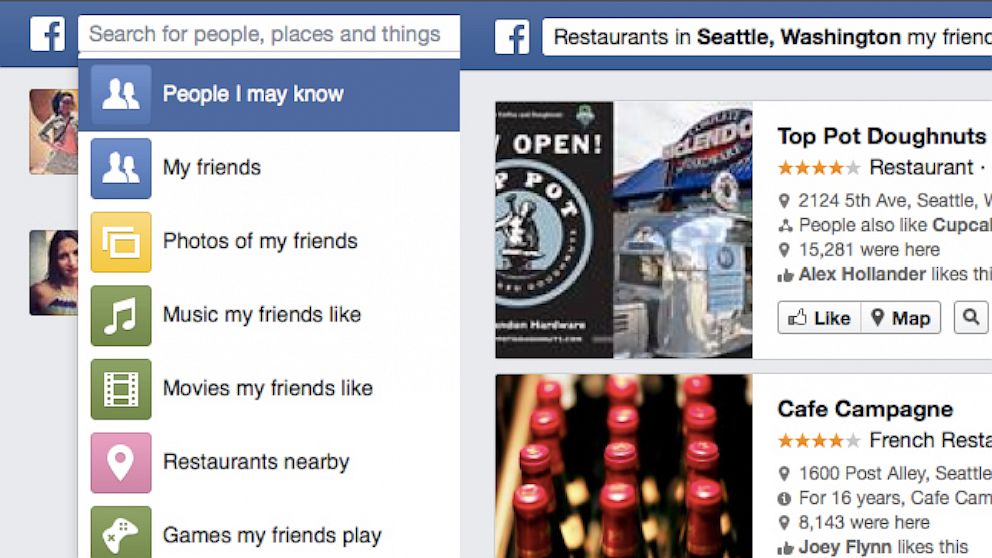
It’s your first day at work and you’re trying to figure out if there are other people from your hometown who happen to work in the same company. Now instead of approaching the HR, what you can do is log into your Facebook account and type a little query – People from [Your Town] who work at [Company Name] in [Current City]. You may even find connections with one degree of separation using a query like – My friends of friends who work at [Company Name].

 http://a.abcnews.com/images/Technology/ht_facebook_graph_search_ll_130705_16x9_992.jpg


What you just did is called Facebook Graph search and it is available to all people using Facebook in English on their desktop computers. With Graph Search, you can enter your search queries in natural English and find like-minded people, discover places where you may eat, find books to read, or even hunt for programmers for your project.

Facebook Graph Search Commands – The Big List

Graph Search is powerful, easy to master and incredibly useful. Here are a collection of search queries that will give you a good idea of what you can do with Graph Search on Facebook.

1. Track your Facebook Activity

  1. My favorite pages
  2. My favorite music
  3. Books I like
  4. Photos I have liked
  5. Photos I have like that are recent
  6. Places visited by me
  7. Places nearby I visited
  8. Games I like

2. View photos of friends, or even strangers

  • Photos of my friends
  • Photos of my friends of friends taken in [Place]
  • Photos of people named [Name]
  • Photos of (or uploaded by) [Name]
  • Photos of [Name] in (or before or after) [Year]
  • Photos commented on by [Name]
  • Photos liked by [Name]
  • Photos of [Person A] liked by [Person B]
  • Photos of [Person A] AND [Person B]

3. Find new places to eat, visit.

  • Restaurants nearby liked by my friends
  • [Cuisine] Restaurants liked by my friends of friends in [City]
  • Hotels nearby liked by my friends of friends
  • Friends who live (or have lived) in [Place]
  • Recent photos taken in [Place]
  • Places in [City] visited by people who live nearby

4. Discover things you may like.

  1. Music (or Games or Movies) I may like
  2. Books liked by people who like [Author Name]
  3. Favorite Books (or Movies or TV Shows or Restaurants) of my friends
  4. Movies liked by people who have interests similar to me
  5. Musicians liked by people who listened to [Band Name]
  6. Apps used by my friends
  7. Apps people who live nearby use

5. What’s happening around you?

  • Events nearby
  • Local events this weekend
  • Events near [Place] today
  • Events attended by my friends that are tomorrow

6. Know your followers.

  • People who follow me
  • People who follow me and like [Page Name]
  • People who follow me and live in [City]
  • People who follow me and work at [Company]
  • People who follow me and were born in [Year]
  • Friends of friends who follow me

7. Grow your network

  • People I may know
  • People who live nearby and like [Interest Topic]
  • People who have seen [Movie]
  • People who have read [Book]
  • People who speak [Language]
  • People with similar interests to my friends
  • People who work at [Company] in [Year]
  • People who are not my friends and went to work at [Company] in [Year]
  • People who are friends of my friends
  • People who graduated from [College Name] in [Year]
  • People who studied [Subject] at [College] in [Year]
  • People who are not my friends and went to [School] in [Year]

8. Find someone on Facebook.

  • People who work nearby
  • People who are [Profession Name] (like Doctors, Programmers, etc.)
  • People who live in [Place]
  • People who are named [Full or Partial Name]
  • People who are [Gender] and live in [City] and [Relationship Status]
  • People who believe in [Religion Name]
  • People who are N years old
  • People who are older than X and younger than Y years
  • People who were born in [Year]
  • People who work at [Company A] and previously worked at [Company B]
The permutations and combinations are endless.

Save Web Pages as PDFs Without Installing Extensions

While there are plenty of PDF writing software and online conversion services around that can help you save web pages as PDF files, the fact is that you don’t need any of them as long as you have Google Chrome on your computer.

Open any web page inside Google Chrome, press Ctrl+P (or Cmd+P if you are on a Mac) to open the Print dialog and change the destination printer to “Save as PDF.” Hit the Print button and the current web page will instantly download as a PDF document. Simple!


You neither have to install any software on your computer nor any extensions in your browser because Google Chrome itself acts as the PDF writer.
This is especially useful for downloading PDF copies of web pages that involve transactions or session data – like the checkout page on a shopping website – because you often cannot pass such pages to any online PDF conversion service.
One more thing. You can also use Chrome’s PDF engine to convert your local image files, text files and any local HTML web pages to PDFs – if you an open a file in Chrome, it can convert the file to PDF.

Sync Any Folder on your Mac with Dropbox

Cloud storage services like Dropbox and Google Drive allow you to have only one folder on the computer the content of which will always remain in sync with your online account. Any files that you place in this particular folder can be accessed from the web or any of your other computers and mobile devices.


If you would you like to store files from other local folders in your Dropbox, you can either move these folders inside the main Dropbox folder or you can get hold of a free utility called MacDropAny. This app will allow you to sync folders outside your main Dropbox folder with Dropbox but without you having to move these folders anywhere.
To get started, download MacDropAny and copy it to your Mac Applications folder. Now launch the app and it will ask you select a folder on your Mac that you would like to sync with Dropbox (or Google Drive). Next select the folder inside your main Dropbox folder where you would like this external folder to go. You may even choose the root Dropbox folder here.
There’s an alternate way as well. Just drag any Mac folder, drop it over the MacDropAny icon and choose the location of the Dropbox folder.
That’s all it takes to add any external Mac folder in your Dropbox queue. What the MacDropAny application just did is it created a symbolic link, or soft link, in your Dropbox folder that points to the external folder. Advanced users can directly run the command “ln -s” inside the shell terminal to create these links manually without requiring any app.
MacDropAny is available for Mac only and works with Dropbox, Google Drive, Box and other cloud storage services that impose the one-folder-only restriction. Windows PC users may download the free SyncToy utility from Microsoft to backup external folders with Dropbox.


6 Things you didn’t know about using Apertures

One of the first things that we learn when we start taking photographs seriously is that ‘aperture’, the size of the hole in the lens through which light passes, controls depth of field.
A large aperture creates shallow depth of field while a narrow one creates wide depth of field. But there’s a little more to aperture than that.


1. Doubling and halving

Apertures are often referred to as stops. Opening up the aperture by one whole stop or 1EV (exposure value) doubles the amount of light passing through the diaphragm, while closing down by one stop halves it.
However, modern cameras are usually set to adjust aperture in one third stops, something that can confuse novice photographers.
If you wish, it’s usually possible to set a camera to adjust in half or full stops via the custom menu.
The full stop aperture settings that you are most like to encounter are: f/1.4, f/2, f/2.8, f/4, f/5.6, f/8, f/11, f/16, f/22 and f/32.

Other settings such as f/3.5 and f/6.3 are fractions between these whole stops. F/3.5 could be thought of as f/2.8 and 2/3, for example, and f/6.3 as f/5.6 and 1/3.
Understanding the doubling and halving effect of aperture is helpful when setting exposure and deciding which shutter speed and/or sensitivity setting to use.
If shutter speed is kept the same, the difference in exposure between opening up the aperture from f/8 to f/5.6 is the same as pushing sensitivity up from ISO 100 to 200; the image will be one stop brighter in both cases.
Similarly, if sensitivity is kept the same, the difference in exposure between a shutter speed of 1/125 sec and 1/60 is the same as adjusting from f/8 to f/5.6; again it’s one stop brighter.
                                                                                                                          
                                                                                             NEXT>>

Tuesday, 24 June 2014

Tips and Tricks for Google Chrome

1. Save web pages as PDFs

Google Chrome has a built-in PDF writer. Open any web page, press Ctrl+P on Windows (or Cmd+P on your Mac) and choose “Save as PDF” from the list of available printers to download that page as a PDF file. No extensions required.

2. Assign custom keyboard shortcuts

Google Chrome supports a variety of keyboard shortcuts but you can also assign your own custom shortcuts to launch various extensions and Chrome apps. Type chrome://extensions in the browser’s address bar to open the Extensions page, scroll to the bottom and click the link that says Keyboard Shortcuts.

3. Delete your web history selectively

Google Chrome’s history (chrome://history) doesn’t have a “Select All” button so if you are to delete, say, 20 pages from the history log, you’ll have to select 20 checkboxes. The trick is that you select the first checkbox, hold shift and select the last checkbox. Everything in between will get selected.


4. Install unapproved Chrome extensions

The newer versions of Chrome do not allow you to install extensions that are not listed in the official Google Chrome store. As a workaround, you can open the Extensions page of Chrome, turn on the Developer mode and drag-n-drop the extension (the .crx file) into your Chrome.

5. Quick Fix for Slow Chrome

Google Chrome may feel sluggish after several hours of continuous usage. The easiest fix is to restart your browser but sometimes the culprit could be a poorly coded extension or even a website. The clue can be found under Tools -> Task Manager. Sort the list by Memory, select the websites and extensions that are consuming more memory and click End Process.

6. Fake your current location

Certain websites, Google Maps for example, may ask the browser for your geographic location. You can choose not to share this data with the website or you may even fake your current location. Go to Tools -> Developer Tools and press the Esc key to open the console. Here switch to the Emulation tab and enter any value for latitude and longitude.

7. Reveal all your hidden passwords

Google Chrome can remember and auto-fill your passwords but they are masked with asterisks. If you would like to reveal a hidden password, open the Developer Tools, visually select the password field on the page and change the input type from password to text. Alternatively, you may find your saved passwords under chrome://settings/passwords.

8. Compose emails from the address bar

If you are to write a new email in Chrome, you’ll open the Gmail website and hit the compose button. Alternatively, just go to the browser’s address bar and type the mailto command like mailto:recipient@domain.com. This will open the Gmail compose window and auto-fill the address in the To field.

9. Take notes inside Chrome

While there are some good Chrome extensions that add notepad-like capabilities to your browser, there’s a little JavaScript hack that will instantly turn your Chrome into a text editor. Open a new tab and paste data:text/html,<html contenteditable> into the address bar. Click anywhere inside the tab and start typing.

10. Use Chrome as a Media Player

You can drag audio files, videos, images, text files and even PDF documents from your desktop into the Chrome video and view them without opening a dedicated viewer application.

11. Fit more bookmarks in the toolbar

If you would like to fit in more bookmarks in the Bookmarks Toolbar of Chrome, just right-click any bookmark, choose Edit and remove everything in the Name field. Hit save and Chrome will only show the site’s favicon in the toolbar. You can thus fit in many more bookmarks in the same space.

12. Improve Stability, load Flash only when needed

The world has moved to HTML5 but some websites still require the Adobe Flash Player. Go to your browser’s Advanced Settings (chrome://settings/content) and choose the “Click to Play” option under Plugins. The Flash Player will stay disabled in your browser and, should a website require Flash, you can activate it on-demand.

13. Pretend to be mobile on slow Internet

If you are on a slow Internet connection, or if the hotel is billing you for every byte of data, you can pretend to be a mobile device and most websites will serve you mobile-friendly versions that are often light in size. Open Chrome developer tools, switch to Emulation tab and choose either Android or iOS as the User Agent. Make sure Screen and Device emulation is off.

14. Remove embarrassing URLs

When you type a few characters in the Chrome’s address bar, the browser will suggest matching URLs from your web history. If there’s any particular URL that you would not like to appear in the list of suggestions, you can easily remove by clearing the history or from the address bar itself. Highlight any auto-complete URL in the drop-down list and press Shift+Delete to remove it permanently.

15. Switch to Google Cache instantly

Google Cache comes very handy if a web page you are trying is open is offline and Chrome makes it really easy for you to access the cached version of any page. While you are on a page, click the address bar, type cache: before the URL and hit Enter. You’ll be taken straight to the Google Cache, if there’s one.